How to Run a Google Index Check in Nuclear Link Indexer
Run a standalone index check, interpret the result and export the filtered view.
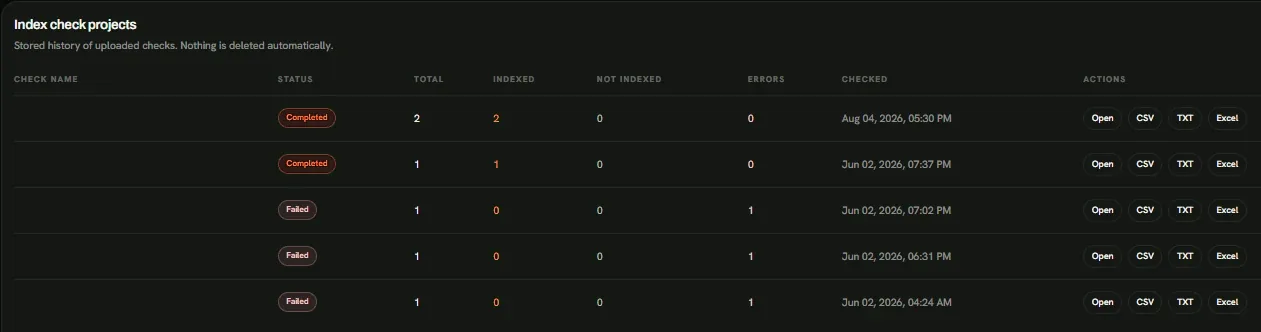
Start a check
- Open Index Check in the intended workspace.
- Enter a check name and paste URLs or upload TXT, CSV or XLSX.
- Review the recognised URL count, estimated cost and available balance. Adjust language, location or depth if your task requires them.
- Choose Create and run. Open the check from its history to follow progress.
Submit no more than 10,000 distinct URLs in one check and verify the recognised count prior to starting.
This operation checks URLs; it doesn't submit them for delivery. Its cost is explained in TOK and billing.
Check after a Googlebot visit
If After Check after Googlebot is available when creating a project, enable it and select a delay. Each delivered URL becomes due after its own recorded visit plus that delay; it doesn't have to wait for every other URL to finish. Review the Index Check result in the project details.
The check uses your shared TOK balance when it's queued, so leave enough balance for it to run. Where this option is disabled for your workspace, ordinary delivery remains available and you may use the standalone Index Check separately.
Interpret the result
- Indexed: the check returned a matching index-presence result.
- Not indexed: no matching result was returned at the time of checking.
- Error: the check did not complete; read the error prior to drawing a conclusion.
- Queued or Running: wait for the existing check to finish.
Compare the requested URL, matched URL and check time. Search-based checks are not exhaustive: a negative result isn't definitive proof that Google has excluded the page. For a site you control, use Search Console's URL Inspection for further diagnosis.
Retry or export
Use Retry errors for rows that failed to produce a result. Review the balance prior to another paid check.
Search or select a status filter, then select CSV, TXT or Excel. This export follows the current filters. Clear them when you need the complete check report.
Need help with a particular project?
Contact support